Category: Technology

  • Top Gen-AI Extensions for Google Docs of 2024

    Introduction to the Next Generation of AI-Powered Writing Tools

    The advent of artificial intelligence has revolutionized numerous industries, and the realm of writing is no exception. As we step into 2024, the next generation of AI-powered writing tools, particularly extensions for Google Docs, is transforming how we approach document creation. These Gen-AI extensions are not just about correcting grammar or checking spelling; they are sophisticated assistants that enhance the overall writing process. From suggesting contextually relevant content to optimizing the layout, these tools are designed to augment human capabilities, allowing writers to focus on the creative aspects of their work.

    The integration of AI into writing tools is a testament to the technology’s maturation. Gen-AI extensions leverage deep learning algorithms and natural language processing (NLP) to understand the nuances of language, ensuring that suggestions and corrections are not only technically accurate but also stylistically appropriate. This marks a significant leap from the first-generation AI tools that were often rigid and limited in their functionality.

    Enhancing Productivity: The Rise of Gen-AI Extensions for Google Docs

    Productivity in document creation and editing has seen a substantial boost with the rise of Gen-AI extensions for Google Docs. These tools are designed to streamline the writing process, reduce repetitive tasks, and minimize errors, thereby saving time and effort for users. The integration of AI into Google Docs has made it possible for writers to receive real-time suggestions, automate formatting, and even restructure content for better flow and coherence.

    Statistics show that the use of AI writing assistants can improve writing speed by up to 30%, a figure that underscores the impact of these tools on productivity. The ability to quickly generate outlines, summaries, and even entire sections of text means that writers can produce more content in less time. Moreover, the AI’s learning capabilities mean that the more you use these tools, the better they become at understanding your writing style and preferences, further enhancing efficiency.

    The Top 12 Gen-AI Extensions for Google Docs in 2024

    In 2024, the market is brimming with Gen-AI extensions for Google Docs, each offering unique features to cater to different writing needs. Here are the top 12 extensions that have caught the attention of writers and editors alike:

    1. WriteMind: Offers personalized writing suggestions based on the user’s past work.
    2. EditAI: Uses advanced NLP to provide context-aware grammar and style corrections.
    3. CreativityBoost: Suggests creative phrases and idioms to spice up your writing.
    4. FormatGenius: Automates document formatting according to preset or custom styles.
    5. ResearchHelper: Integrates with academic databases to suggest citations and references.
    6. LanguageLearner: Tailored for non-native speakers to improve language proficiency.
    7. FlowEnhancer: Analyzes document structure and recommends improvements for better readability.
    8. ToneTuner: Adjusts the tone of your writing to suit different audiences and purposes.
    9. SummaryPro: Generates concise summaries of long documents for quick overviews.
    10. IdeaGenerator: Provides topic suggestions and content ideas based on current trends.
    11. CollaborateAI: Facilitates real-time collaboration with smart suggestions for team writing projects.
    12. CustomWrite: Allows users to train the AI on their writing style for highly personalized assistance.

    Revolutionizing Writing: How Gen-AI Extensions are Changing the Game

    Gen-AI extensions are not just add-ons; they are game-changers in the writing domain. By offering real-time assistance and feedback, these tools are making it possible for writers to produce polished content with unprecedented speed. The AI’s ability to analyze vast amounts of data means that it can offer suggestions that are informed by current trends, popular phrases, and even SEO best practices.

    Experts in the field have noted that Gen-AI extensions are democratizing good writing. With these tools, individuals who may not have formal training in writing can produce work that rivals that of seasoned professionals. This leveling of the playing field is particularly significant in a world where content is king, and effective communication is critical for success.

    Seamless Integration: Gen-AI Extensions That Work Perfectly with Google Docs

    One of the hallmarks of the top Gen-AI extensions is their seamless integration with Google Docs. These tools are designed to be non-intrusive, working in the background to assist users without disrupting the writing flow. The best extensions offer a user-friendly interface that blends naturally with Google Docs’ existing features, making it easy for users to access AI-powered assistance without having to navigate away from their document.

    The integration goes beyond mere compatibility. These extensions are built to leverage Google Docs’ collaborative features, allowing multiple users to benefit from AI assistance in real-time. This synergy between human collaboration and AI support is a significant step forward in document creation and editing.

    AI-Powered Grammar and Style Corrections for Flawless Documents

    Grammar and style are foundational elements of good writing, and Gen-AI extensions excel in ensuring that documents are flawless in these aspects. The AI tools go beyond basic spell-checking; they understand the context and intent behind sentences, enabling them to catch subtle errors that might escape even the most diligent human editors. Whether it’s a misplaced modifier, an inconsistent tense, or an overused passive construction, these extensions can identify and suggest corrections.

    The style corrections offered by Gen-AI are equally impressive. They can adapt to different style guides, whether it’s APA, MLA, or Chicago, ensuring that academic and professional documents meet the required standards. Furthermore, they can help writers develop a consistent voice throughout a document, which is particularly valuable for branding and narrative consistency.

    Boost Your Creativity with Innovative Content Suggestion Extensions

    Creativity can sometimes be elusive, but with Gen-AI extensions designed for content suggestion, writers can find the inspiration they need to keep their creative juices flowing. These tools can suggest metaphors, analogies, and descriptive phrases that add flair to any piece of writing. They can also help overcome writer’s block by offering ideas for story developments, arguments, or perspectives that the writer might not have considered.

    The content suggestion capabilities of Gen-AI are grounded in a deep understanding of genre-specific conventions and reader expectations. Whether you’re crafting a fantasy novel or a persuasive essay, these extensions can provide relevant and innovative suggestions that elevate your writing.

    Streamline Your Workflow with Smart Formatting and Layout AI Tools

    Formatting and layout are often time-consuming tasks that can distract writers from the actual content. Gen-AI extensions address this challenge by offering smart formatting and layout tools that automate these aspects of document preparation. With just a few clicks, users can apply professional templates, adjust margins, and organize content into a visually appealing format.

    These AI-powered tools are particularly useful for complex documents like reports, proposals, or research papers, where consistent formatting is crucial. They can also adapt to the specific requirements of different industries or organizations, ensuring that documents are always presented in the most appropriate and effective manner.

    Collaborate Like Never Before with Real-Time AI Assistance

    Collaboration is at the heart of many writing projects, and Gen-AI extensions are making it easier and more efficient than ever before. With real-time AI assistance, team members can receive instant feedback and suggestions that are consistent across the document, regardless of who is writing. This ensures a unified voice and style, which is essential for collaborative documents.

    The AI also facilitates smoother communication among collaborators by offering suggestions for clarifications or expansions where needed. This can be particularly helpful in avoiding misunderstandings or misinterpretations that can arise during collaborative writing efforts.

    Customizing Your Gen-AI Experience: Tailored Extensions for Every User

    The one-size-fits-all approach is a thing of the past when it comes to Gen-AI extensions. Users can now customize their AI writing assistant experience to suit their specific needs and preferences. Whether it’s training the AI on your unique writing style or setting custom goals for vocabulary enhancement, these extensions offer a personalized experience that can significantly improve writing outcomes.

    Customization also extends to the type of writing being done. For instance, a legal professional can use an extension tailored to legal writing, while a fiction writer can opt for a tool that specializes in narrative techniques. This level of customization ensures that every writer gets the most out of their Gen-AI extension.

    The Future of Document Creation: Predictions for Gen-AI Extensions Beyond 2024

    Looking beyond 2024, the future of document creation with Gen-AI extensions appears to be even more promising. Predictions suggest that these tools will become even more intuitive, with AI being able to anticipate a writer’s needs and offer assistance before it’s even requested. We may also see the rise of voice-activated AI writing assistants that can transcribe, edit, and format documents entirely through voice commands.

    Advancements in AI ethics and bias detection are also expected to play a significant role in future Gen-AI extensions. As AI becomes more ingrained in our writing processes, ensuring that it upholds ethical standards and remains free of biases will be paramount.

    Conclusion: Embracing the Gen-AI Revolution in Document Editing and Creation

    The Gen-AI revolution in document editing and creation is well underway, and embracing these tools is becoming essential for writers who wish to stay competitive and efficient. The top Gen-AI extensions for Google Docs in 2024 offer a glimpse into a future where AI is an indispensable partner in the writing process, enhancing creativity, ensuring accuracy, and facilitating collaboration.

    As we continue to integrate these advanced tools into our workflows, it’s important to remember that they are here to augment human skills, not replace them. By leveraging the strengths of both human and artificial intelligence, we can achieve a level of document creation that was once unimaginable. The future of writing is bright, and Gen-AI extensions are leading the charge.

  • 10 Free Online PDF Compressors for Highest Compression Level

    10 Free Online PDF Compressors for Highest Compression Level

    PDF compression is a process that reduces the file size of a PDF document without compromising its quality. This is achieved by using algorithms to eliminate redundant data, thus making the file easier to manage, store, and share. The compression levels vary depending on the tool used, with some offering basic compression and others providing advanced options for higher compression ratios. Read on about 10 totally free tools to compress pdf online.

    Understanding Compress PDF Online Tools and Compression Levels

    PDF compression is a crucial tool for managing large PDF files. It works by reducing the size of the file, making it easier to upload, download, or share via email. The compression process involves the removal of redundant data and the optimization of images within the document. The compression levels range from low, medium, to high, with high compression providing the smallest file size but potentially reducing the quality of images within the document.

    Different Use Cases for Compress PDF Online

    Online PDF compression tools are useful in various scenarios. For instance, they are essential when you need to upload a large PDF file to a website or email, as most platforms have size limits for uploads. Additionally, compressing PDFs can help save storage space on your device. Businesses can also use these tools to compress multiple files into one compact, easy-to-share document. You may also read about alternatives of Google Docs which allow you to export your document to PDF format.

    10 Free Online PDF Compressor

    There are numerous free websites available that offer PDF compression services. These websites vary in terms of their features, ease of use, and the level of compression they offer. Here, we will provide an overview of the top ten free websites for PDF compression, based on their popularity, features, and user reviews.

    1. Smallpdf

      Smallpdf is a popular online tool that offers a range of PDF-related services, including compression. It is known for its user-friendly interface and high-quality compression. Smallpdf allows you to compress your PDF files to a size suitable for email, without compromising on quality. It also offers additional features such as PDF conversion, editing, and merging.

    2. Adobe Acrobat Online

      Adobe, the creator of the PDF format, also offers an online tool for compressing PDF files. Adobe Acrobat Online provides a reliable and high-quality compression service. It also offers a range of other PDF-related services, including conversion, editing, and signing.

    3. PDF Compressor

      PDF Compressor is a dedicated online tool for compressing PDF files. It offers a simple and straightforward interface, making it easy to use even for beginners. PDF Compressor allows you to compress your PDF files to a size suitable for web, making it ideal for those who need to upload their files online.

    4. I Love PDF

      I Love PDF is a comprehensive online tool that offers a range of PDF-related services, including compression. It is known for its user-friendly interface and high-quality compression. I Love PDF allows you to compress your PDF files without compromising on quality. It also offers additional features such as PDF conversion, editing, and merging.

    5. PDF2Go

      PDF2Go is a versatile online tool that offers a range of PDF-related services, including compression. It offers a simple and straightforward interface, making it easy to use. PDF2Go allows you to compress your PDF files to a size suitable for email or web, and it also offers additional features such as PDF conversion, editing, and merging.

    6. Soda PDF

      Soda PDF is a comprehensive online tool that offers a range of PDF-related services, including compression. It is known for its user-friendly interface and high-quality compression. Soda PDF allows you to compress your PDF files without compromising on quality. It also offers additional features such as PDF conversion, editing, and merging.

    7. Sejda

      Sejda is a versatile online tool that offers a range of PDF-related services, including compression. It offers a simple and straightforward interface, making it easy to use. Sejda allows you to compress your PDF files to a size suitable for email or web, and it also offers additional features such as PDF conversion, editing, and merging.

    8. DocuPub

      DocuPub is a dedicated online tool for compressing PDF files. It offers a simple and straightforward interface, making it easy to use even for beginners. DocuPub allows you to compress your PDF files to a size suitable for web, making it ideal for those who need to upload their files online.

    9. PDF24

      PDF24 is a comprehensive online tool that offers a range of PDF-related services, including compression. It is known for its user-friendly interface and high-quality compression. PDF24 allows you to compress your PDF files without compromising on quality. It also offers additional features such as PDF conversion, editing, and merging.

    10. Online2PDF

      Online2PDF is a versatile online tool that offers a range of PDF-related services, including compression. It offers a simple and straightforward interface, making it easy to use. Online2PDF allows you to compress your PDF files to a size suitable for email or web, and it also offers additional features such as PDF conversion, editing, and merging.

    Conclusion: Choosing the Right PDF Compression Tool for Your Needs

    Choosing the right PDF compression tool depends on your specific needs and preferences. If you frequently work with large PDF files and need a reliable and high-quality compression service, then tools like Smallpdf, Adobe Acrobat Online, or Soda PDF might be suitable for you. If you need a simple and straightforward tool for occasional use, then tools like PDF Compressor or DocuPub might be more suitable. In conclusion, online PDF compression tools are a convenient and effective solution for reducing the size of PDF files. They allow you to easily share and store your files, and ensure that they open quickly and smoothly. By choosing the right tool for your needs, you can make the most of these services and enhance your productivity.

  • ChatGPT Launches Voice and Image Input Features

    ChatGPT Launches Voice and Image Input Features

    In a groundbreaking move, OpenAI’s ChatGPT has introduced advanced voice and image capabilities, elevating its user experience to unprecedented heights. These exciting features open up a world of possibilities, allowing users to engage in voice conversations and interact with images seamlessly.

    Expanding Horizons with Voice and Image

    With this latest update, ChatGPT takes a significant leap forward, offering users a more intuitive and versatile interface. Here’s a glimpse of how these capabilities can enhance your everyday interactions:

    • Visual Conversations: While on your travels, capture an image of a landmark and embark on a live conversation about its intriguing details. Back at home, snap photos of your fridge and pantry to plan your meals, with the added bonus of step-by-step recipe guidance. After dinner, use ChatGPT to assist your child with math problems by simply taking a photo, circling the problem, and receiving helpful hints.

    Rollout Details

    OpenAI is taking a gradual approach to ensure a smooth user experience. Voice functionality is initially available to Plus and Enterprise users and can be accessed on both iOS and Android devices through settings. Meanwhile, image capabilities are accessible across all platforms. A few week back, OpenAI also launched custom instructions for ChatGPT feature for free to everyone.

    Engaging in Dynamic Voice Conversations

    ChatGPT now offers the ability to engage in lively voice conversations. Here’s how to get started:

    1. Navigate to “Settings” in the mobile app.
    2. Opt into voice conversations.
    3. Tap the headphone icon situated at the top-right corner of the home screen.
    4. Select your preferred voice from a choice of five options.

    The new voice capability relies on a state-of-the-art text-to-speech model, capable of generating remarkably lifelike audio from plain text and a brief sample of speech. Each voice option has been meticulously crafted in collaboration with professional voice actors, ensuring a natural and engaging conversation. Additionally, the system uses Whisper, an open-source speech recognition system, to transcribe spoken words into text accurately.

    How to Give Voice Input to ChatGPT: A Comprehensive Guide

    Voice input adds a new dimension to your interactions with ChatGPT, making conversations more dynamic and intuitive. Here’s a step-by-step guide on how to provide voice input to ChatGPT:

    Step 1: Launch ChatGPT

    Begin by opening the ChatGPT application on your preferred device or platform, and make sure you have the latest version to access voice input.

    Step 2: Start a Conversation

    Initiate a conversation with ChatGPT by typing a greeting or introducing the topic you’d like to discuss.

    Step 3: Activate Voice Input

    To begin using voice input, tap the microphone icon within the ChatGPT interface. This action will activate your device’s microphone, allowing you to speak to ChatGPT.

    Step 4: Speak Clearly and Concisely

    When speaking to ChatGPT, articulate your thoughts clearly and concisely. Use natural language, and feel free to ask questions, share ideas, or request information.

    Step 5: Engage in a Dynamic Conversation

    ChatGPT will transcribe your spoken words into text and respond accordingly. Engage in a dynamic back-and-forth conversation, ask follow-up questions, or delve deeper into the topic of discussion.

    Step 6: Explore Voice Commands (Optional)

    For added convenience, you can use voice commands to perform specific actions. For instance, you can say “Stop” to end the voice input mode or “Read Aloud” to have ChatGPT read its response aloud.

    Step 7: Enjoy Seamless Interactions

    With voice input, ChatGPT provides a more natural and interactive conversational experience, whether you’re seeking information, storytelling, or having a casual chat.

    By following these steps, you can harness the power of voice input to ChatGPT and enjoy enriching conversations that feel like talking to a real person.

    Enhance your ChatGPT experience with ‘ChatGPT voice input’ – a feature that opens the door to seamless ‘voice interaction with ChatGPT.’ Whether you prefer ‘speech input for ChatGPT’ or ‘audio interaction with ChatGPT,’ our step-by-step guide ensures you make the most of this innovative capability. Start engaging with ChatGPT using your voice today and unlock a more natural and interactive way to converse.

    Interacting with Images

    ChatGPT’s image recognition feature is a game-changer in problem-solving and information retrieval. You can now effortlessly share one or more images with ChatGPT, unlocking numerous possibilities:

    • Troubleshooting: Use it to diagnose issues, such as why your grill won’t start.
    • Meal Planning: Analyze the contents of your fridge for efficient meal planning.
    • Work Insights: Dive into complex graphs and data for valuable work-related insights.

    To get started, simply tap the photo button to capture or select an image. For iOS or Android users, initiate the process by tapping the plus button. You can also discuss multiple images or employ the drawing tool to guide your virtual assistant.

    ChatGPT’s image understanding is powered by advanced multimodal models, GPT-3.5 and GPT-4, which apply their language reasoning skills to a wide range of images, including photographs, screenshots, and documents containing both text and images.

    How to Provide Image Input to ChatGPT: A Step-by-Step Guide

    When it comes to using ChatGPT’s new image capabilities, the process is straightforward and user-friendly. Here’s a step-by-step guide on how to give image input to ChatGPT while ensuring a smooth and effective interaction:

    Step 1: Launch ChatGPT

    Begin by opening the ChatGPT application on your preferred device or platform. Ensure you have the latest version to access the image input feature.

    Step 2: Start a Conversation

    Initiate a conversation with ChatGPT, just as you would with a text-based query. Type in a greeting or simply introduce the topic you’d like to discuss.

    Step 3: Tap the Photo Button

    To introduce an image into the conversation, tap the “Photo” button, which is prominently displayed within the ChatGPT interface. This action will prompt you to either capture a new image or select an existing one from your device’s gallery.

    Step 4: Capture or Select an Image

    If you choose to capture a new image, ensure your device’s camera is active, and align the shot with your subject. If you prefer to use an existing image, browse your gallery and select the relevant picture for the conversation.

    Step 5: Discuss or Analyze

    Once the image is added to the conversation, ChatGPT will automatically process it. You can now discuss the image, ask questions related to it, or seek insights and information.

    Step 6: Utilize the Drawing Tool (Optional)

    If the image contains specific details or areas you’d like to highlight or reference, you can use ChatGPT’s drawing tool. This feature allows you to mark or annotate the image to direct the conversation precisely where you want it to go.

    Step 7: Continue the Conversation

    Engage in a dynamic conversation with ChatGPT based on the image input. You can ask follow-up questions, seek explanations, or delve deeper into the topic associated with the image.

    Step 8: Enjoy the Benefits

    With ChatGPT’s image understanding capabilities, you can troubleshoot problems, plan meals, analyze data, or explore a wide range of topics seamlessly.

    By following these simple steps, you can harness the power of ChatGPT’s image recognition to enhance your conversations and gain valuable insights.

    Discover a world of enhanced communication with ChatGPT’s innovative features, including ‘ChatGPT image input’ and ‘ChatGPT video input.’ These capabilities empower you to seamlessly integrate visual and audio elements into your conversations, taking discussions to a whole new level of engagement and information exchange. Whether you’re troubleshooting issues, planning meals, or analyzing complex data, ‘image understanding with ChatGPT’ and ‘video interaction with ChatGPT’ provide versatile tools to cater to your needs. Our user-friendly guide walks you through the process, ensuring that you make the most of these cutting-edge features. Step into the future of communication and explore ‘ChatGPT image input,’ ‘ChatGPT video input,’ and related functionalities today.

    Safety and Responsibility

    OpenAI’s commitment to safety and responsibility is unwavering. With advanced features come increased responsibilities, and OpenAI is taking these challenges seriously:

    • Voice Technology: While the voice technology opens doors to creativity and accessibility, it also introduces new risks, such as potential impersonation and fraud. OpenAI is mitigating these risks by focusing on specific use cases like voice chat and collaborating with trusted partners, including Spotify.
    • Vision Capabilities: Vision-based models have unique challenges. OpenAI has rigorously tested these capabilities for various risks and aims to strike a balance between utility and safety, inspired by its collaboration with Be My Eyes, a mobile app for individuals with visual impairments.

    Expanding Access

    Initially, these voice and image capabilities are rolling out to Plus and Enterprise users. OpenAI is enthusiastic about extending these features to developers and additional user groups in the near future.

    Conclusion

    ChatGPT’s voice and image capabilities have revolutionized the way we interact with artificial intelligence. With these innovative features, we can now engage in natural, intuitive conversations, and seamlessly integrate visual and audio elements into our discussions. This opens up a world of possibilities for learning, creativity, and problem-solving.

    ChatGPT’s voice input empowers us to speak to ChatGPT directly, while image recognition allows us to share images with ChatGPT and unlock valuable insights.

    Overall, ChatGPT’s voice and image capabilities represent a significant advancement in the field of artificial intelligence.

  • All About Custom Instructions for ChatGPT

    All About Custom Instructions for ChatGPT

    ChatGPT, the versatile AI chatbot developed by OpenAI, has revolutionized various tasks, from generating text to language translation and creative content creation with personalized AI interactions. In its continuous effort to enhance user experience, ChatGPT has introduced an innovative feature known as Custom Instructions for tailored responses. This exciting addition empowers users to fine-tune ChatGPT’s responses according to their specific requirements allowing customized AI communication. In this blog post, we will delve into the advantages of utilising Custom Instructions and offer valuable insights on optimising this potent feature.

    What is Custom Instructions Feature in ChatGPT?

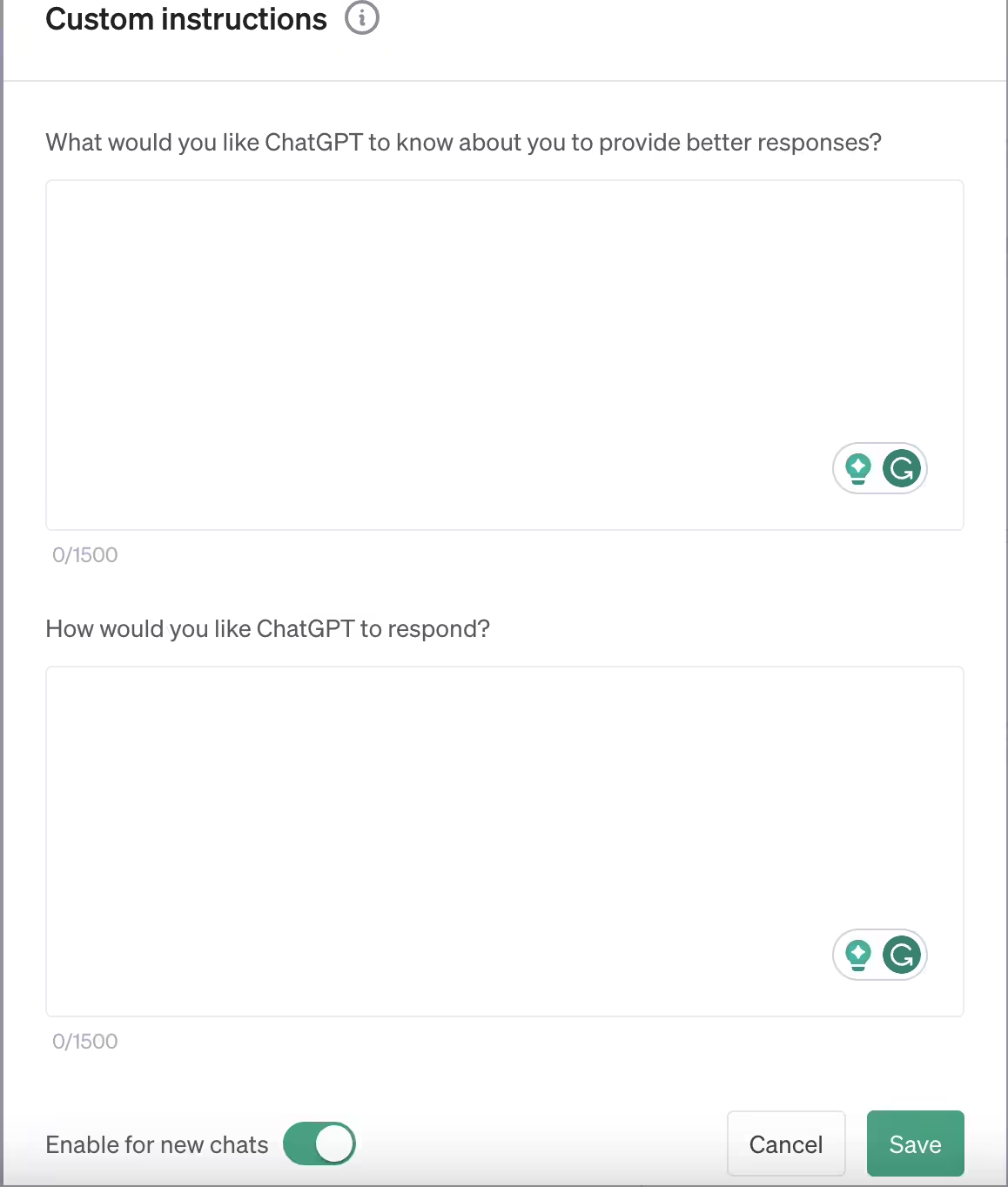
    Custom Instructions Window ChatGPT
    Custom Instructions Window ChatGPT

    ChatGPT’s latest custom instructions update was released on August 9, 2023. This update made custom instructions available to all users, including those on the free tier of the service. Additionally, the update now allows users to use custom instructions even with chat history turned off.

    Custom instructions are a way to give users more control over how ChatGPT responds in short it allows guided AI conversations. By adding preferences and requirements to custom instructions, users can give adaptive AI instructions to ChatGPT what kind of responses they are looking for. For example, a user could add the following specific AI guidance to get ChatGPT to generate more creative text:

    • “Please use a variety of sentence structures”.
    • “Try to use different types of imagery”.
    • “Make sure the text is humorous”.

    How to Set Custom Instruction for ChatGPT?

    To use custom instructions, users first click on their name and then select “Custom instructions” to get started. They can then enter their instructions into two fields: “General instructions” and “Specific instructions”. The general instructions tell ChatGPT more about yourself while the Specific instructions allow you to precisely force ChatGPT to respond in a certain way. Here the General instructions input field is labelled as “What would you like ChatGPT to know about you to provide better responses?” and the Specific instructions field is labelled as “How would you like ChatGPT to respond?“.

    Instructions for “What would you like ChatGPT to know about you to provide better responses?”

    Consider adding answers to the below questions in this input field or related information:

    • Where are you based?
    • What do you do for work?
    • What are your hobbies and interests?
    • What subjects can you talk about for hours?
    • What are some goals you have?

    For example, a user could add the following general instructions to ChatGPT:

    • I’m based in Asia.
    • I work for a SaaS-based tech company.
    • I can talk about quantum computing for hours.

    Instructions for “How would you like ChatGPT to respond?”

    Consider adding answers to the below questions in this input field or related information:

    • How formal or casual should ChatGPT be?
    • How long or short should responses generally be?
    • How do you want to be addressed?
    • Should ChatGPT have opinions on topics or remain neutral?

    The user could then add the following specific instructions to ChatGPT:

    • Always respond in English-UK or any language of your choice.
    • When responding to questions about history, please cite your sources.
    • When responding to questions about science, please use evidence from peer-reviewed journals.
    • When responding to questions about current events, please use information from reputable news sources.
    • Please be informative and comprehensive.
    • Try to be as objective as possible.
    • Use language that is appropriate for a general audience.

    By using custom instructions, users can tailor ChatGPT to their specific needs and preferences. This can help them get more accurate and helpful results from ChatGPT, and it can also save them time and effort.

    How to Enable Custom Instructions for ChatGPT Web?

    1. Visit ChatGPT for Web and login to your account.
    2. Click your name on the bottom-left side of the page.
    3. Choose “Custom Instructions“.
    4. Type your instructions in both fields.
    5. Click “Show tips” for examples.
    6. Hit “Save” to confirm.

    How to Enable Custom Instructions for ChatGPT Android App?

    Enabling ChatGPT’s Custom Instructions on Android:

    1. Download the ChatGPT App for Android Phone from Play Store.
    2. Launch the ChatGPT app on your Android device.
    3. Tap the settings icon in the top-right corner.
    4. Choose “Account” from the settings menu.
    5. Locate and activate “Custom Instructions” by toggling the switch to ON.
    6. Confirm your selection by tapping “Save” or “Apply“.
    7. Initiate a new chat session to experience personalized responses using your custom instructions.

    Unlock tailored interactions with ChatGPT’s Custom Instructions feature on your Android device!

    How to Enable Custom Instructions for ChatGPT iOS App?

    Enabling ChatGPT’s Custom Instructions on iOS:

    1. Download the ChatGPT app for iPhone from App Store.
    2. Open the ChatGPT app on your iOS device.
    3. Access the settings by tapping the gear or cogwheel icon.
    4. Select “Account” from the available options.
    5. Find “Custom Instructions” and switch it ON to enable.
    6. Save your changes by tapping “Save” or “Apply.”
    7. Start a fresh chat session to witness personalized responses with your custom instructions.

    Experience a personalized AI conversation with ChatGPT’s Custom Instructions feature on your iOS device!

    What should you write in “What would you like ChatGPT to know about you to provide better responses?” ?

    This section presents a unique opportunity to share essential information about yourself that will guide ChatGPT in delivering responses tailored to your specific preferences. Consider the following pointers when filling out this field:

    1. Industry or Field: If your conversations often revolve around a particular industry or field, mention it here. ChatGPT can then adjust its responses to align with the context of your domain.
    2. Audience: Specify the type of audience you typically interact with. Whether it’s professionals, students, or enthusiasts, this information helps ChatGPT adopt an appropriate tone and level of complexity.
    3. Writing Style: Communicate your preferred writing style, whether it’s formal, casual, technical, or creative. This guidance will aid ChatGPT in mirroring your desired tone.
    4. Background: Share a brief overview of your background, such as your profession, hobbies, or areas of expertise. This knowledge helps ChatGPT generate responses that resonate with you.
    5. Guidelines for Responses: If you have specific guidelines, ethical considerations, or sensitivities, outline them here. This ensures ChatGPT respects your boundaries in its interactions.
    6. Frequently Discussed Topics: Highlight topics you frequently discuss or seek information about. This will prompt ChatGPT to prioritize those subjects in its responses.

    Remember, the more comprehensive and accurate your input, the better ChatGPT can cater to your unique requirements, leading to a more satisfying conversation experience.

    Note: There is a character limit of 1500 characters for this field, so try to set the instructions in not more than 1500 characters.

    What should you write in “How would you like ChatGPT to respond?” ?

    This field lets you customise the responses the way you want so write clear instructions for it. Crafting effective instructions for ChatGPT’s responses is pivotal to achieving the outcomes you desire. Here’s a guide to creating impactful directions:

    1. Response Length: Specify whether you prefer concise or detailed responses. You can indicate if you’re looking for short and snappy answers or in-depth explanations.
    2. Tone and Style: Define the tone you want ChatGPT to adopt – friendly, formal, casual, or any other specific tone that suits your conversations.
    3. Imagery and Creativity: If you’re seeking creative outputs, encourage ChatGPT to incorporate imaginative elements, vivid descriptions, or metaphors.
    4. Opinions or Neutrality: Indicate whether you’d like ChatGPT to offer opinions on topics or remain neutral and objective in its responses.
    5. Citing Sources: If accuracy is vital, instruct ChatGPT to provide sources or references when discussing facts, news, or historical events.
    6. Specific Instructions: Use examples to illustrate the type of responses you want. For instance, if you’re looking for explanations of complex concepts, request responses akin to a “layman’s terms” explanation.
    7. Avoiding Certain Topics: If there are subjects you prefer ChatGPT to steer clear of, clearly state them here.
    8. Sense of Humor: If appropriate, encourage ChatGPT to infuse a touch of humour in its responses.

    By providing detailed and well-defined AI directive refinement instructions in this section, you empower ChatGPT to deliver responses that resonate with your communication style and objectives.

    Note: There is a character limit of 1500 characters for this field, so try to set the instructions in not more than 1500 characters.

    Benefits of using Custom Instructions

    Custom instructions can save users time by preventing them from having to rewrite the same instruction prompts every time they interact with ChatGPT providing enhanced user preferences. They can also help users get more specific results from ChatGPT with targeted AI responses, which can be helpful for tasks such as creative writing, brainstorming, and research.

    1. Shorter Prompts: Custom instructions save you from giving the same instructions every time you prompt ChatGPT, thereby shortening your prompts and giving you uniformly patterned responses.
    2. Precision and Relevance: Custom Instructions enable users to receive responses that are precisely aligned with their desired outcome. By providing specific guidelines, users can enhance the accuracy and relevance of ChatGPT’s responses, ensuring they address the intended context effectively.
    3. Time Efficiency: Repetition can be a time-consuming aspect of interacting with AI models. With Custom Instructions, users can eliminate redundancy, as ChatGPT incorporates their preferences into every conversation, saving valuable time and streamlining interactions.
    4. Tailored Responses: Custom Instructions empower users to personalise ChatGPT’s tone, style, and approach to match their individual requirements. Whether it’s a specific industry, target audience, or preferred writing style, users can mould ChatGPT’s responses to align with their unique needs.

    Tips for using Custom Instructions

    Keep the below points in mind while you do AI instruction personalization in ChatGPT:

    1. Be Specific: Clarity is key when crafting Custom Instructions. The more precise and detailed your instructions are, the better ChatGPT can comprehend your expectations and provide suitable responses.
    2. Provide Examples: Enhance the understanding of your desired outcomes by including examples of the responses you’re seeking. Concrete examples can aid ChatGPT in grasping the nuances of your requirements.
    3. Consistency Matters: Regular use of Custom Instructions helps ChatGPT become accustomed to your preferences over time. Consistency enables the AI to refine its responses, delivering more accurate and tailored results.
    4. Experiment and Refine: Don’t hesitate to experiment with various Custom Instructions to identify what works best for you. Through trial and error, you can fine-tune your instructions and uncover the most effective strategies.

    Availability of ChatGPT Custom Instructions

    ChatGPT’s Custom Instructions feature is available for all platforms i.e. Web, Android and iOS apps in both free as well as paid plan worldwide except in EU and UK regions. Both ChatGPT and ChatGPT Plus users can use it in their ChatGPT Android app, ChatGPT iOS app as well as in ChatGPT website. This means every user can now enjoy ChatGPT’s individualized AI interactions for free.

    How does Custom Instructions Work in ChatGPT?

    • You can edit or delete custom instructions at any time for future conversations. This means that you can change your mind about what you want ChatGPT to do, or you can remove the custom instructions altogether. Any changes you make will take effect immediately in future conversations.
    • Your instructions won’t be shared with shared link viewers. This means that if you share a link to a conversation with ChatGPT, the person who clicks on the link will not be able to see your custom instructions. This is important for privacy reasons.
    • If you use third-party plug-ins, then the model may provide plug-in developers with relevant information from your instructions. This is because third-party plugins can sometimes access your custom instructions in order to function properly. However, only plug-in developers that you trust should have access to this information. You should also be aware that third-party plugins may collect other information about you, such as your IP address and browser information.
    • Information from your use of custom instructions will also be used to improve model performance. This means that ChatGPT will learn from your custom instructions and become better at understanding what you want. This contextual AI feedback can help to improve the accuracy and relevance of ChatGPT’s responses.

    How to Disable Custom Instructions for Android and iOS?

    Disabling Custom Instructions on your Android or iOS device is a straightforward process. Follow these steps to revert to the default settings:

    1. Open Settings: Launch the ChatGPT app on your Android or iOS device.
    2. Access Account Settings: Navigate to the “Settings” section, typically indicated by a gear or cogwheel icon.
    3. Account Preferences: Look for the “Account” option within the settings menu and tap on it.
    4. Custom Instructions: Locate the “Custom Instructions” setting and switch the toggle to OFF. This action will deactivate Custom Instructions for your conversations.
    5. Save Changes: Confirm your choice by saving the changes. Depending on the app interface, you might find a “Save” or “Apply” button at the bottom. Tap it to finalize the disabling of Custom Instructions.

    How to Disable Custom Instructions on the Web?

    If you’re using ChatGPT on the web, you can disable Custom Instructions with the following steps:

    1. Access Chat Preferences: Visit the chat platform at chat.openai.com using your web browser.
    2. Navigate to Preferences: Look for the “Preferences” or “Settings” option, often represented by a gear or similar icon. Click on it to access your preferences.
    3. Remove Custom Instructions: In the chat preferences configuration, you’ll find fields related to Custom Instructions. Delete any text present in both fields. This effectively removes your custom instructions.
    4. Save Changes: After clearing the custom instructions fields, locate the “Save” button on the web interface. Clicking this button will save your changes and disable Custom Instructions.

    Conclusion

    Custom Instructions is a game-changing feature that elevates the capabilities of ChatGPT, making interactions more tailored, efficient, and effective. By harnessing the power of user-tailored AI communication and adhering to the insightful tips provided in this blog post, users can unlock the full potential of ChatGPT’s optimized AI engagement. As technology continues to evolve, embracing AI response customisation features like this enables us to engage with AI in a manner that aligns seamlessly with our specific needs and preferences.

    Frequently Asked Questions about Custom Instructions for ChatGPT

    [faq-schema id=”21084″]

  • Best Alternative To Google Docs

    Best Alternative To Google Docs

    Although Google Docs is the backbone of many businesses, your team might require more than it can provide. Yes, we are aware of your thoughts. “My organisation relies heavily on Google Docs, and we adore it. Why would we need alternatives to Google Docs? Priorities first,  indeed  Google Docs is a robust, almost universal text-editing application with fantastic real-time collaboration capabilities. Additionally, you may easily get plenty of cloud storage for your digital assets and exchange documents. But it isn’t flawless. To begin with, offline access in Google Docs is especially problematic. Its change-tracking technologies have the potential to create as many errors as they can fix. Also, using Google Docs to create content which is intended to be published on websites is quite troublesome. The issues with lists and nested lists is the major problem in such scenarios. If these issues are of particular concern to you, take a look at the Docs alternatives listed below.

    Top  3 Alternatives to Google Docs

    Below is a list of best 5 Google Docs alternatives, which can significantly increase the writer’s productivity while lowering the cost incurred by your organisation. Depending on the requirements, these docs could be used to replace Google Docs.

    1. Zoho Writer

      Zoho Writer is a secure, privacy-conscious document editor designed for collaborative teams by a brand that does not monetize your data for advertising purposes. It was thoughtfully created to support you in maintaining maximum concentration while working on documents. With contextual menu modes for each stage of your drafting process, the toolbars are kept to a minimum. Key Features:
      • Zia, an AI assistant built into Zoho Writer, is there to help you write better. It takes your phrases’ context into account and offers grammatical, readability, and style suggestions to help you further refine your writing.
      • Additionally, the Zoho Writer’s integrated document production, digital signature, and form automation tools let you manage contracts and bids.
      • It works seamlessly on all major browsers.
      • The majority of today’s most widely used business apps are linked with Zoho Writer. It enables you to connect your documents with pre-existing Zapier workflows and post immediately to your Blogger or WordPress website.
    2. Nuclino

      When you’re working together on copy, Nuclino largely mimics Docs. What distinguishes it as a noteworthy alternative is what takes place off the page. Instead of just putting files in directories, Nuclino allows you to link relevant files together to create a wiki-like effect. As a result, it is simpler to link to one document inside of another and to search for information in other linked documents. However, in order to support these linking tools, Nuclino reduces the functionality of key crucial Docs formatting capabilities. Key Features:
      • Although there are fewer formatting possibilities than in Docs, it is simple to link to related documents within a text block.
      • Nuclino features dark mode which is unique in this segment. Dark mode lets you work for longer without putting much strain on your eyes.
      • You can browse and arrange information with the help of the graph view and others.
      • Use Markdown commands on your keyboard to swiftly format content.
    3. Microsoft Office Online

      The simplicity of Google Docs’ design is what makes it ideal for more casual, informal document collaboration. However, Word unquestionably provides a considerably greater selection of features for creating and modifying documents. With several toolbars and tabs, its interface may be more complicated and confusing than Google Docs’, but it also provides a great deal of freedom and flexibility when it comes to designing your pages. All things considered, Microsoft is still among the most widely used commercial productivity systems, and for good reason. Making the switch from Google Docs to Word shouldn’t be challenging if other Microsoft suite products are already used to power your organisation. Key Features:
      • An online version of Microsoft Office Word, the traditional desktop document editing application.
      • Available with Microsoft 365 business plans which also include OneDrive, Excel, and PowerPoint.
      • Despite problems with password protection and macros, real-time collaboration and simpler monitored modifications are also advantages.

    Frequently Asked Questions about Word Processors [faq-schema id=”20557″]